Installation and Configuration
WaoClaw is a local AI agent assistant built on the OpenClaw ecosystem. Setup is simple and does not require complex configuration. You can connect directly to the WAO APP and send commands from it to automate tasks such as report processing, file transfer, and document editing. All data stays on your local device.
Visit the Official Website
Open your browser and go to:
Download the Installer for Your OS
Select the package that matches your operating system: 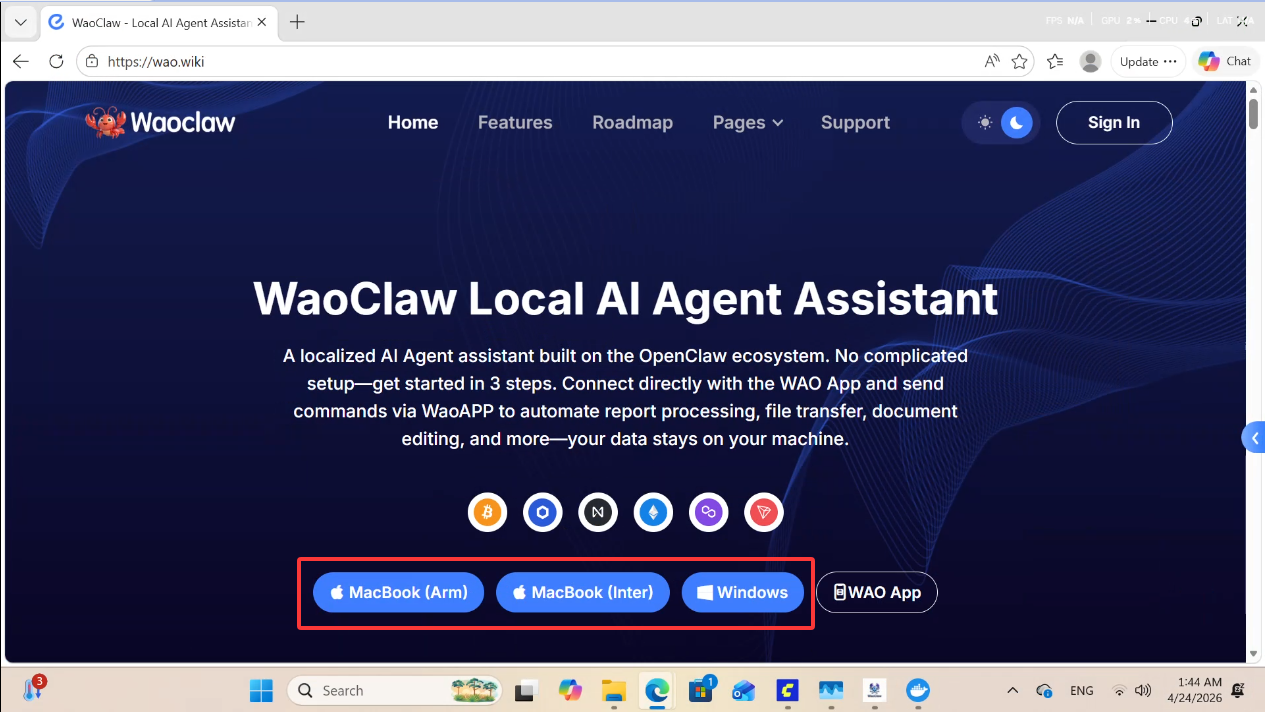
- MacBook (Arm)
- MacBook (Intel)
- Windows
Click the correct version and wait for the download to complete. 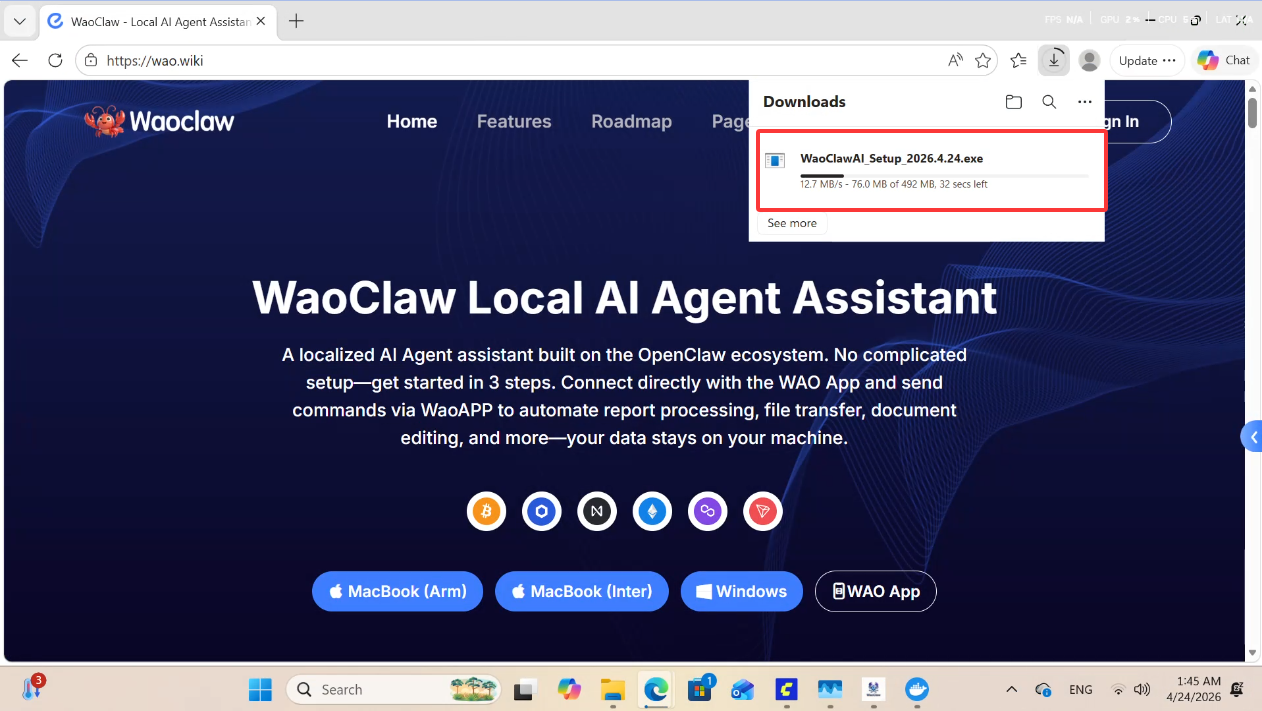
Handle Browser Download Security Warnings
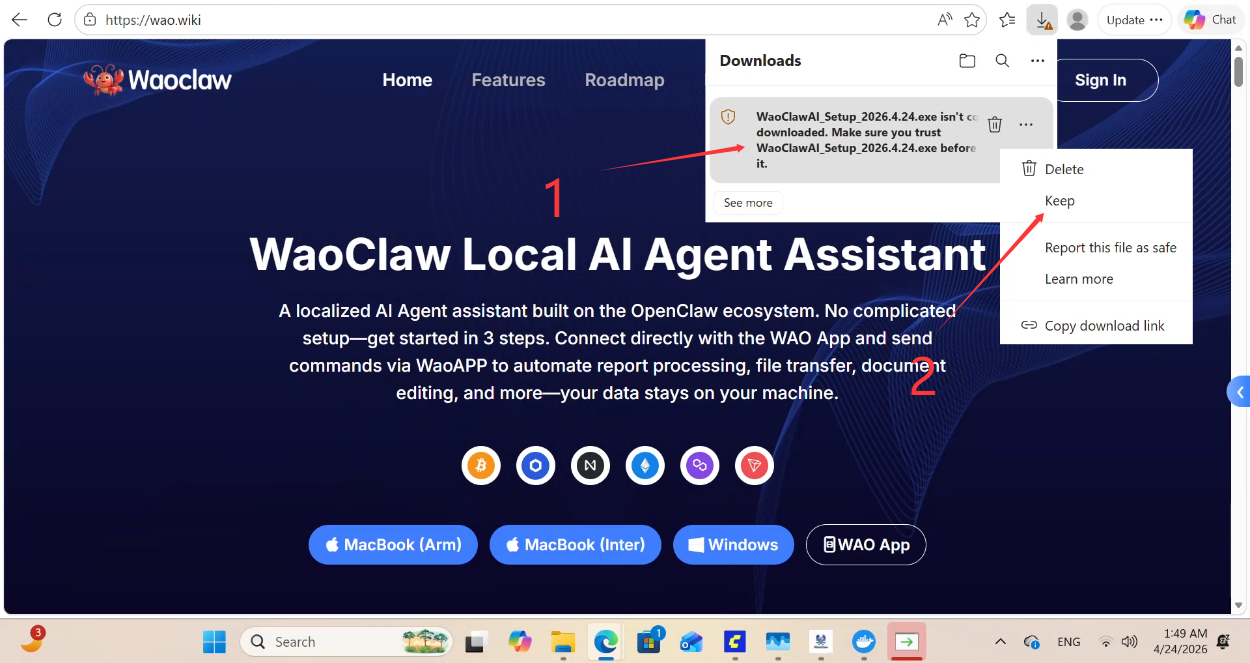
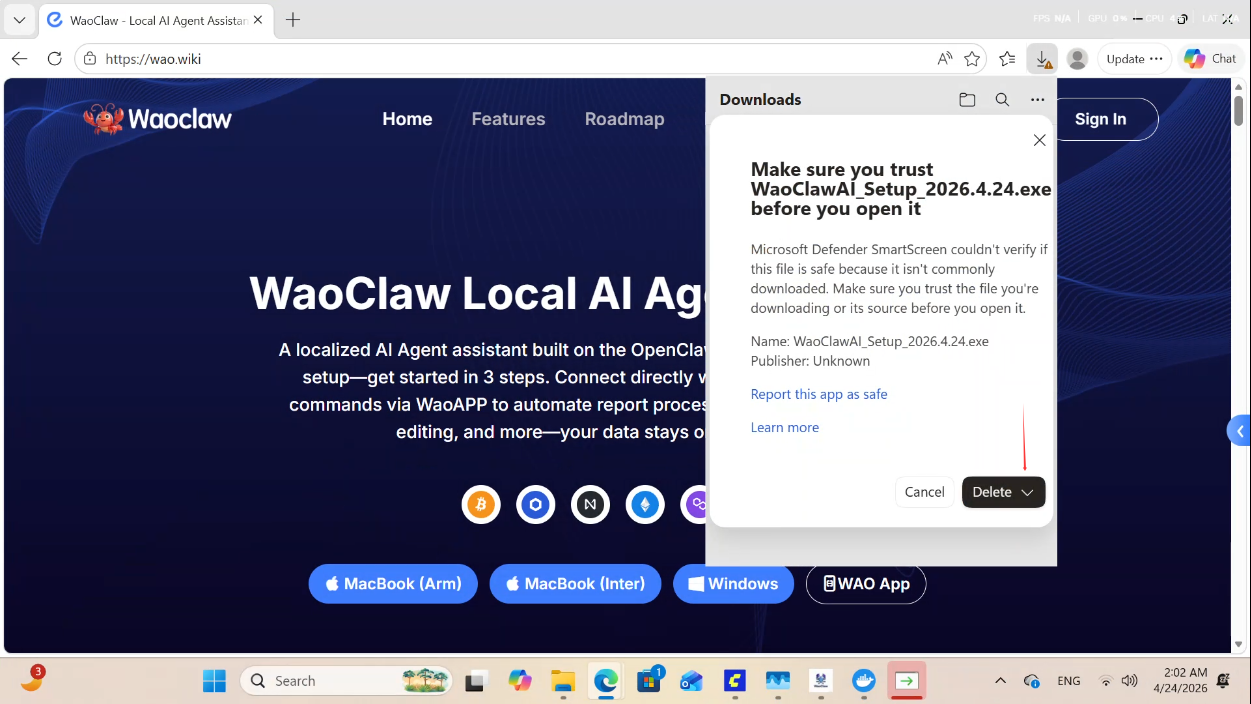
After downloading, your browser may show a warning like: WaoClawAI_Setup_2026.4.24.exe isn't commonly downloaded. Use the following steps: 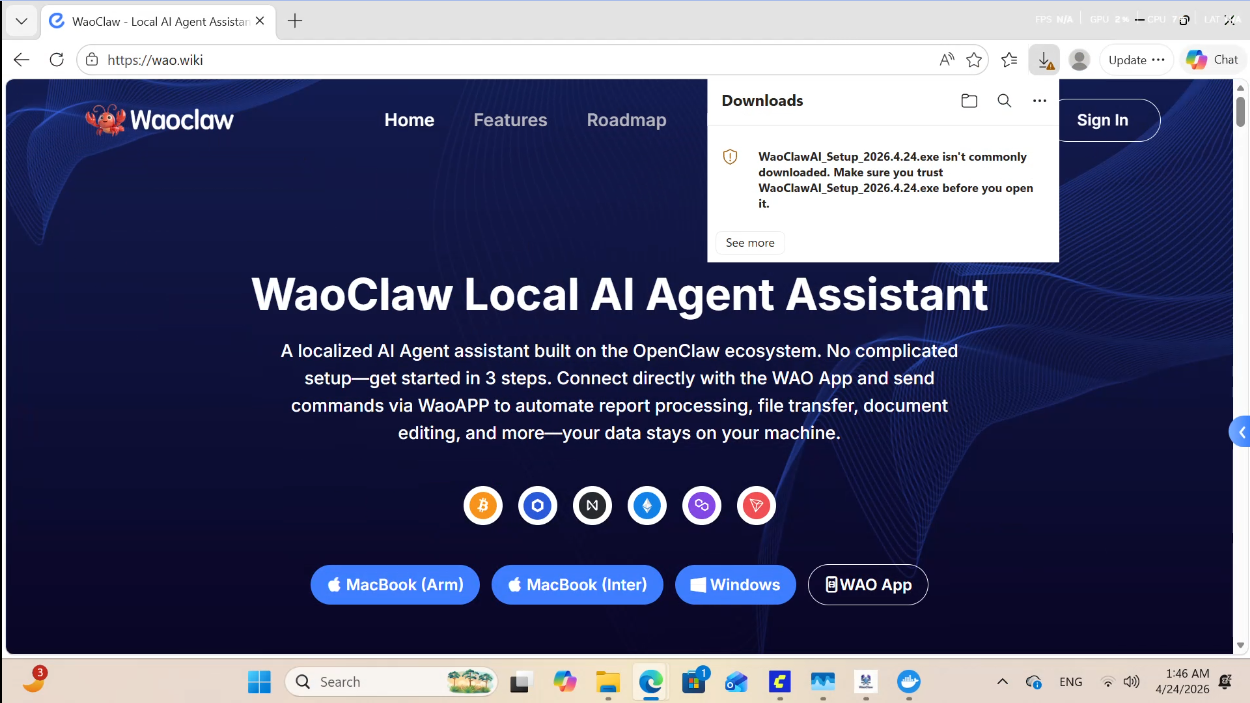
- Right-click the downloaded installer file.
- Click Keep in the popup options.
Handle Microsoft Defender SmartScreen Prompts
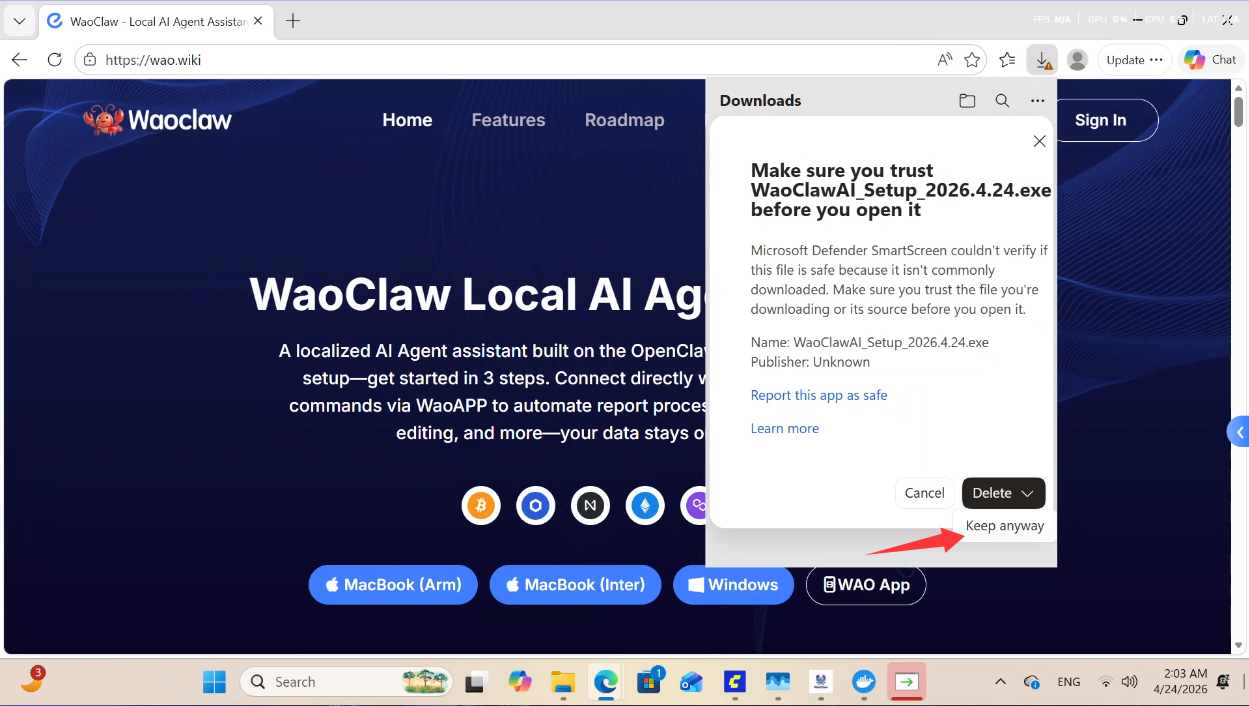
After keeping the file, Microsoft Defender SmartScreen may display another security prompt:
- Click the dropdown arrow in the prompt to expand more options.
- Click Keep anyway.
- After confirmation, click Open file to launch the installer.
Handle User Account Control (UAC)
Windows may ask whether to allow this app from an unknown publisher to make changes to your device. Click YES to enter the installation flow. 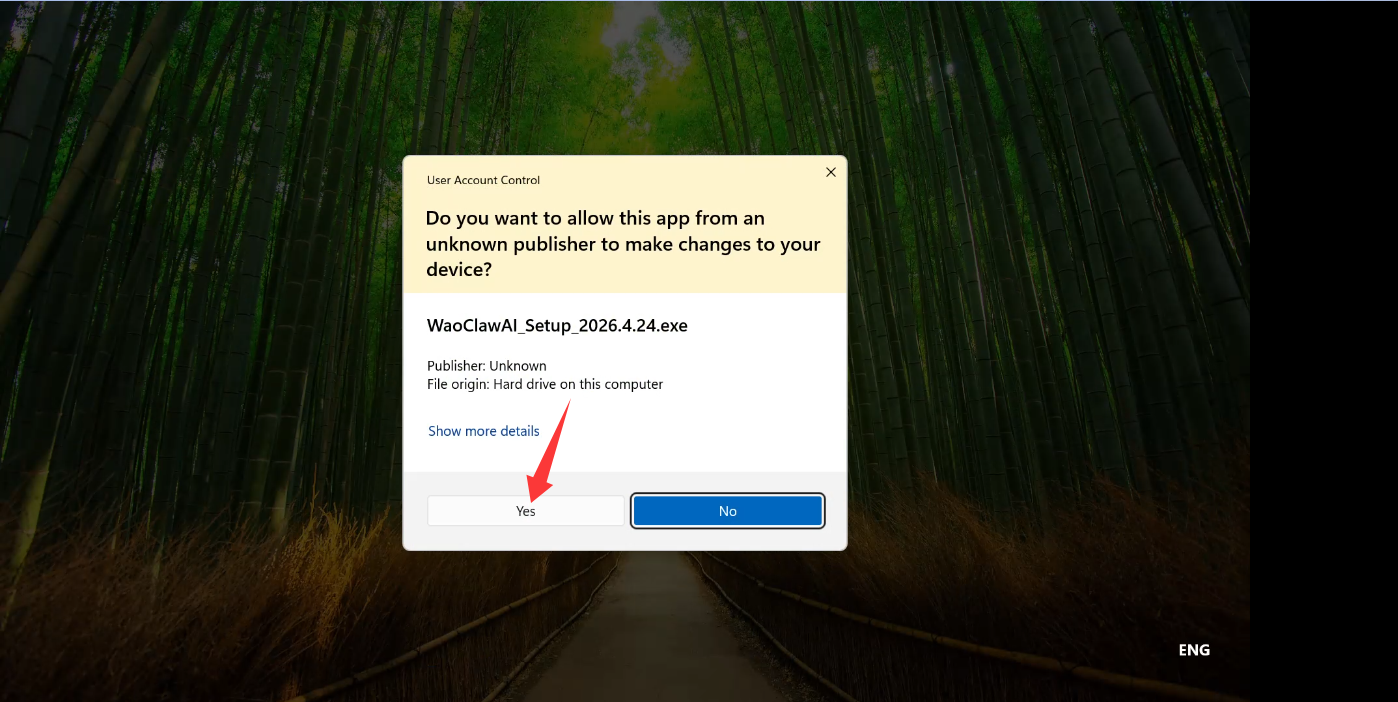
Installation Steps
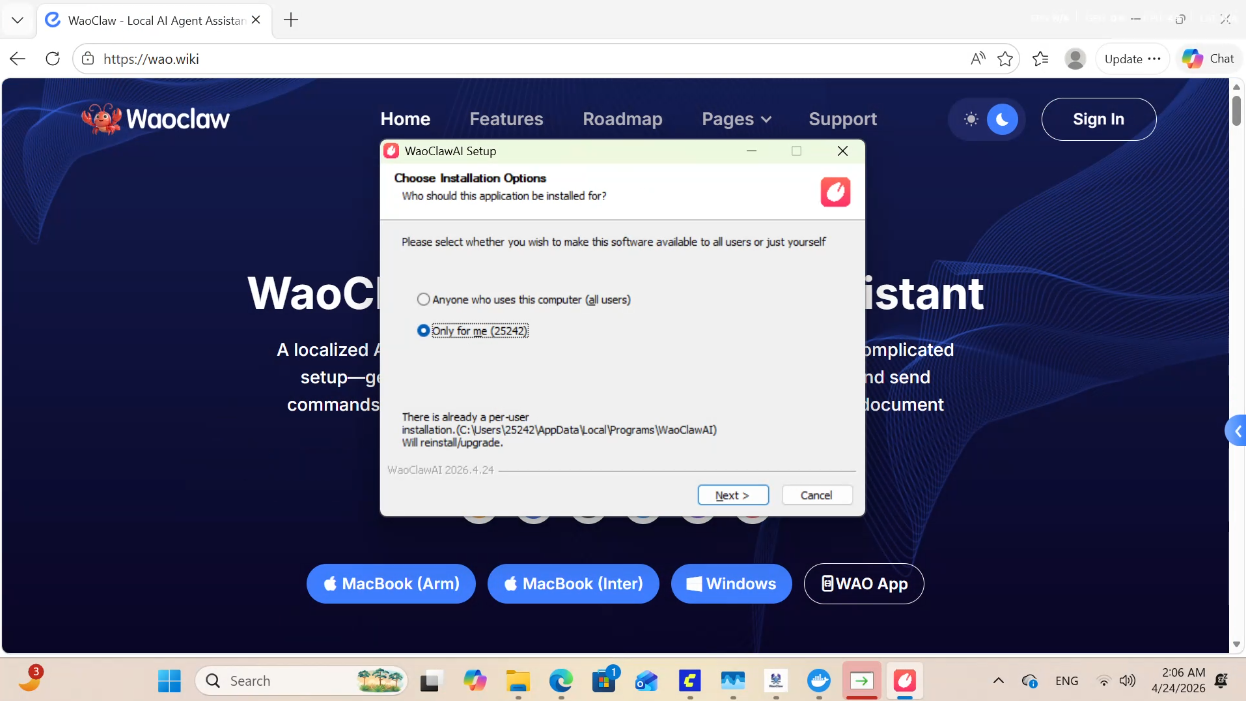
- In the installation options page, select user scope (
Anyone who uses this computer/Only for me), then click Next. - In the install path page, optionally click Browse... to customize the folder (required disk space: 2.5GB), then click Install.
- Wait for installation to complete (the package is large, so installation may take some time).
- When you see
WaoClawAI has been installed on your computer, optionally check Run WaoClawAI, then click Finish.
Account Registration and Login
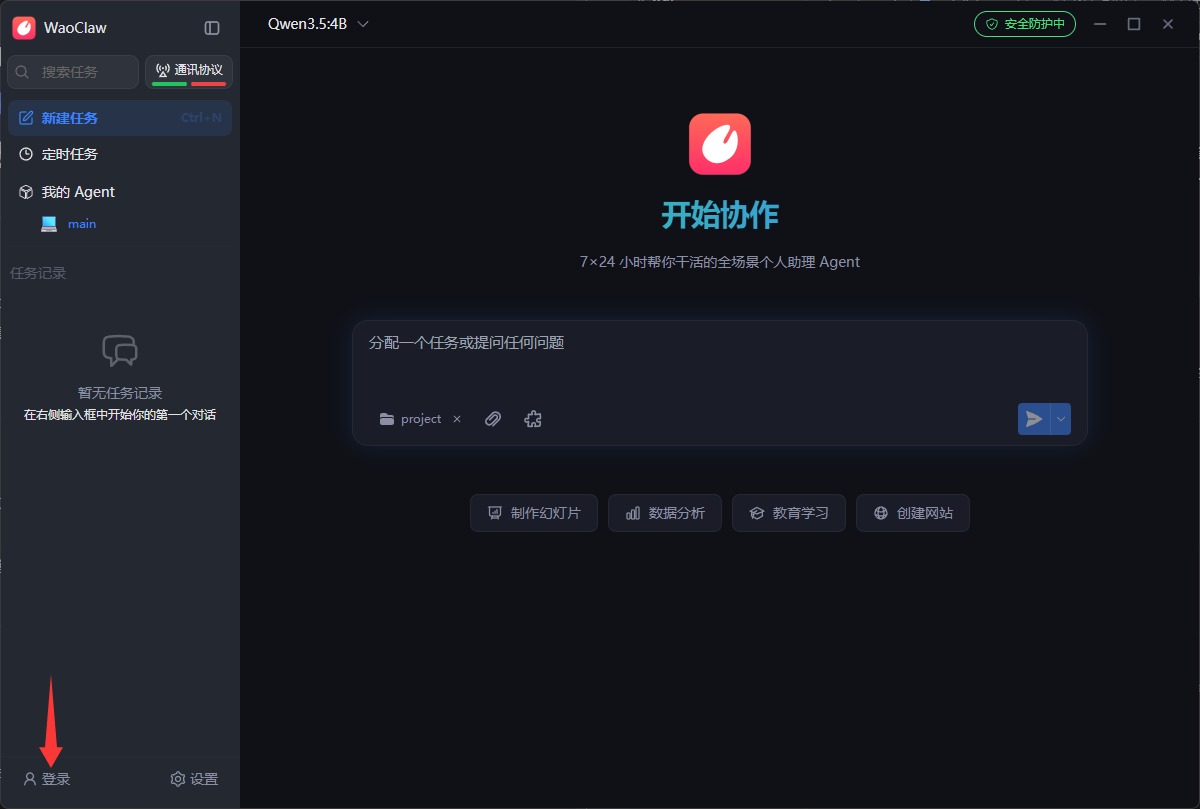
- Open the main interface and click Login.
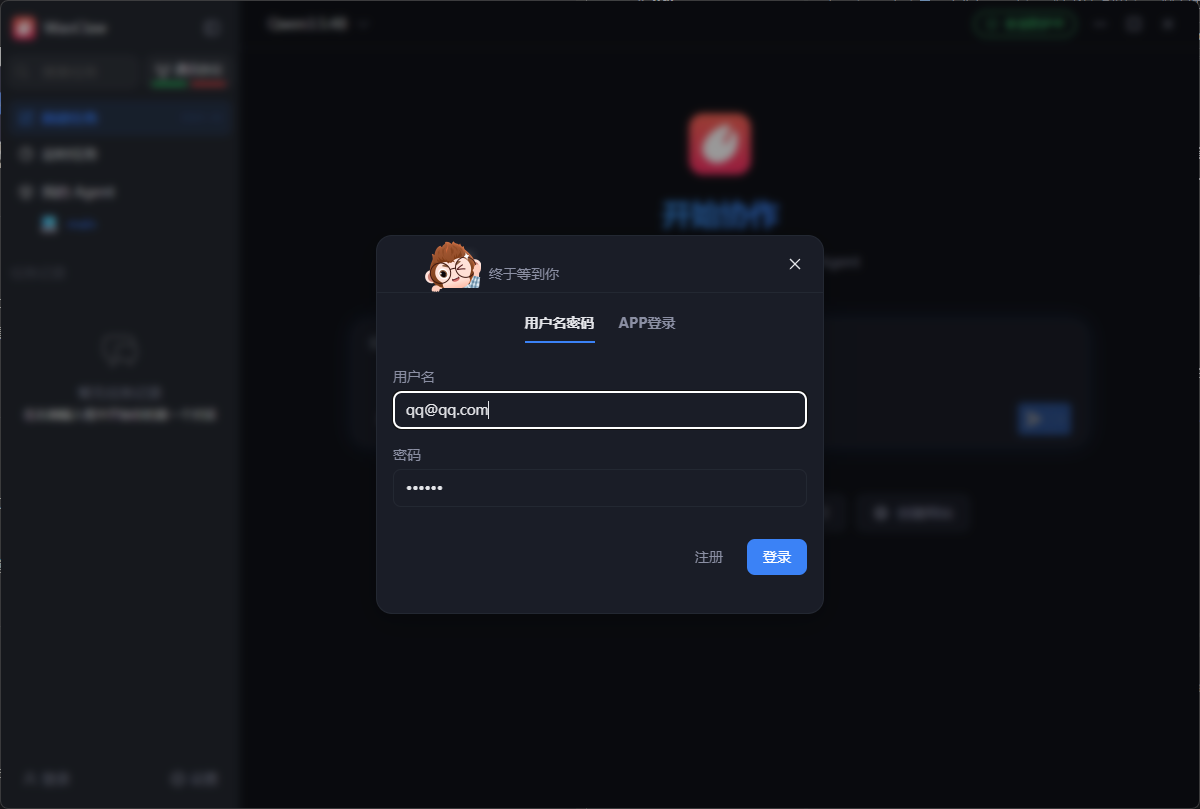
- On the account page: if you do not have an account, enter username/password and click Register; if you already have one, enter credentials and click Login.
Compute Node Selection and Usage
- After login, click the compute node entry in the interface.
- Select an available compute node.
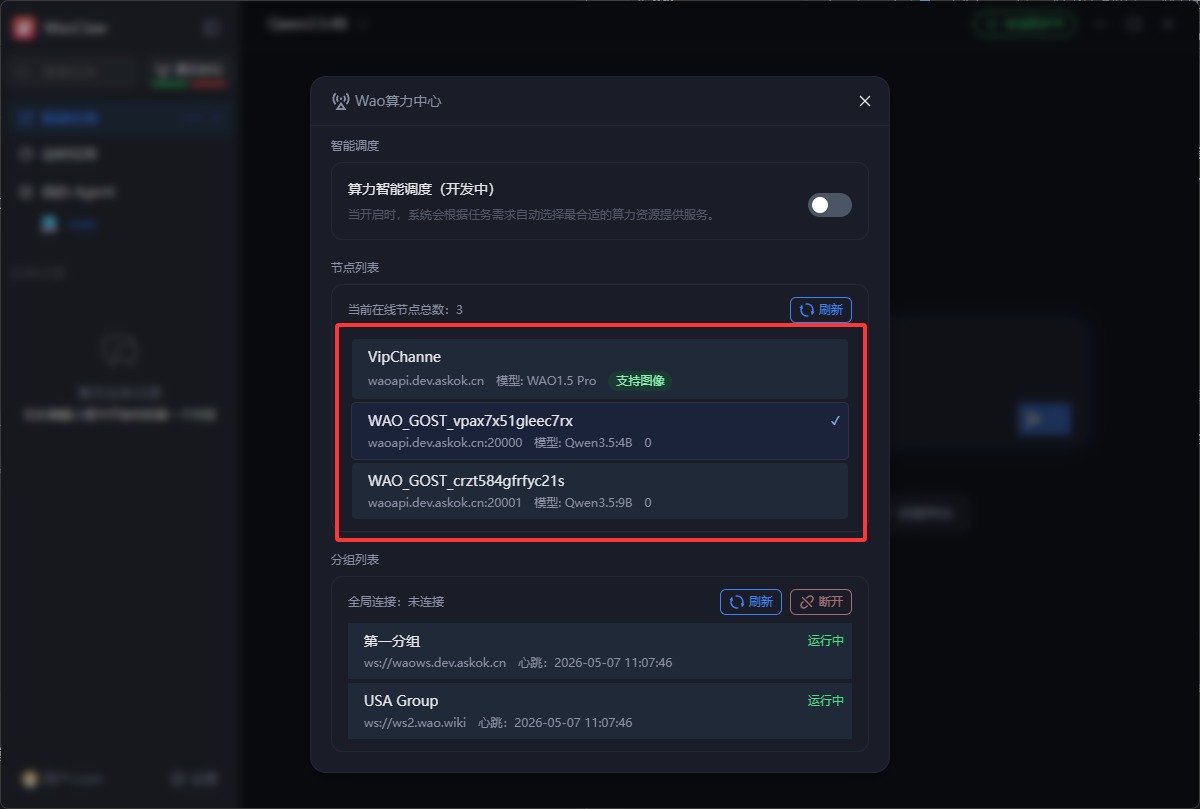
- After node configuration is complete, WaoClaw is ready for task interaction and command execution.
Configuration Notes
First Launch
On first startup, WaoClaw automatically initializes:
- Detects and configures system environment
- Initializes local data storage
- Configures the default skill library
Advanced Configuration
For custom settings, use the settings panel:
- Model Selection: choose the AI model to use
- Skill Management: install or uninstall skills
- Channel Configuration: configure communication channels such as WAO APP
- Data Storage: set the local storage path
Notes
- Ensure a stable network connection during installation
- Use a reliable network environment for downloading
- Restart your computer after installation to ensure settings take effect
- Required disk space is approximately 2.5GB
Uninstall
To uninstall WaoClaw:
- Windows: find WaoClaw in Control Panel and uninstall it
- macOS: drag WaoClaw to Trash
Tip: User data is kept during uninstall. To remove everything, manually delete the
~/.waoclawdirectory.
Note: Parts of this documentation may be AI-generated.